August 12, 2026
Your Complete Permit Inspection Scheduling Guide
Your Complete Permit Inspection Scheduling Guide
Schedule a building permit inspection in six steps: choose your method (online portal, IVR phone, or SMS/text), locate your permit record, select the correct inspection code, pick an available date before the local cut-off, confirm your contact details, and submit. That’s the core of the inspection scheduling process. The rest of this guide covers every variation, script, and failure mode you’re likely to hit across U.S. municipal jurisdictions.
Must-have info before you start:
- Permit number
- Inspection type code
- Contact phone number for the site
Pro Tip: Entering the wrong inspection code is one of the most common scheduling errors. It routes your request to the wrong inspector type, which means a wasted trip and a re-inspection fee. Double-check the code against your permit’s required inspection list before submitting.
Key Takeaways
Scheduling a building permit inspection correctly requires the right method, the right code, and a site that’s actually ready when the inspector arrives.
| Point | Details |
|---|---|
| Six-step scheduling sequence | Choose method, find permit, select inspection code, pick date before cut-off, confirm contact, submit and save confirmation. |
| Cut-off times are hard deadlines | Most jurisdictions require next-day requests by 3:00–4:00 PM the prior business day; missing it means a full day’s delay. |
| Wrong inspection code = wrong inspector | Verify the code against the permit’s required inspection list before every booking to avoid misassignment and re-inspection fees. |
| Predecessor inspections must pass first | Scheduling a final inspection before required predecessors are passed triggers automatic rejection in most portal systems. |
| Miamipermitai reduces upstream failures | For Miami-Dade projects, Miamipermitai flags missing documents and sequencing issues before submission, lowering re-inspection risk. |
Table of Contents
- How does the permit inspection scheduling process work step by step?
- Online portals vs. IVR phone vs. SMS/text: which method fits your situation?
- What are the cut-off times and booking windows you need to know?
- What information do you need ready before scheduling?
- How do you reschedule, cancel, and check inspection results?
- Inspection-day checklist: what needs to be ready when the inspector arrives
- Why do inspections fail, and how do you fix each cause?
- How do you handle multi-trade, expedited, and remote inspection requests?
- Copy-paste IVR commands and SMS templates for scheduling
- What to do when something goes wrong with scheduling
- How Accela Citizen Access works: a step-by-step example
- What working with contractors taught us about scheduling friction
- Fewer re-inspections start before you ever schedule
- Sources
How does the permit inspection scheduling process work step by step?
Most U.S. building departments use the same underlying workflow regardless of the platform. Portland’s Bureau of Development Services confirms the three primary channels: online portals, 24/7 IVR phone systems, and SMS/text. Here’s how to move through each one.
Numbered steps (works for Accela, ePermitting, and most IVR systems):
- Log in or search your permit. Most portals let you search by permit number, site address, or contractor license. You don’t always need an account.
- Open the inspection request. Look for “Schedule an Inspection” or “Request an Inspection” on the permit record page.
- Select the inspection type. Pick the correct code from the dropdown. This determines which inspector gets assigned.
- Choose a date. The calendar shows available slots. Most portals cap automated booking to the next several available dates.
- Confirm contact details. Enter the site contact name and phone number. Some portals also ask for an email.
- Submit and save confirmation. Write down or screenshot the confirmation number. Check for a confirmation email or text.
After you submit:
- Save the confirmation number immediately
- Screenshot the confirmation screen
- Verify a confirmation email or text arrives within a few minutes
- Check the portal the next morning to confirm the inspection still shows as scheduled
Pro Tip: Trade-specific codes matter. An electrical rough-in code sends an electrical inspector; a framing code sends a building inspector. If your project has both, book them as separate requests with separate codes.
Online portals vs. IVR phone vs. SMS/text: which method fits your situation?
Each channel has a real use case. Picking the wrong one wastes time.
| Method | Best for | Key advantage | Watch out for |
|---|---|---|---|
| Online portal | Complex permits, multi-inspection bookings, record-keeping | Real-time calendar, instant confirmation, full audit trail | Requires internet access; some portals require account creation |
| IVR phone | After-hours scheduling, no web access | Available 24/7, no login needed | No visual confirmation; easy to mis-enter codes |
| SMS/text | Quick single-inspection booking where supported | Fast, works from any phone | Limited to jurisdictions that support it; fewer error checks |
Online portals give you the clearest paper trail and let you see actual availability before committing. IVR is genuinely useful at 9 PM when you realize you forgot to schedule tomorrow’s framing inspection. SMS sits in the middle: fast, but only available in jurisdictions that have set it up.
Pro Tip: Use the online portal for any inspection that involves multiple trades or a sequence of required predecessor inspections. Use IVR or SMS only for straightforward single-trade requests where you already know the exact code.
What are the cut-off times and booking windows you need to know?
Missing the cut-off means waiting another full business day. Most jurisdictions require next-day inspection requests to be submitted by mid-afternoon the prior business day. Some enforce that hard with no exceptions.
Oregon’s ePermitting system notes that portals may not allow same-day scheduling after an early morning hour, and automated booking is typically capped to the next several available dates. That’s the norm across most U.S. systems, not an Oregon quirk.
On the day of the inspection, don’t expect a precise arrival time. King County’s scheduling documentation confirms that inspectors typically call the morning of the inspection to assign an arrival window. Some jurisdictions open a phone window between 7:30 AM and 8:00 AM specifically for estimated arrival times.
If you miss the cut-off:
- Call the permitting office directly during business hours
- Ask about expedited or priority scheduling (some jurisdictions offer it for a fee)
- Schedule the next available date through the portal and note the new timeline for your crew
What information do you need ready before scheduling?
Incomplete entries are the second-fastest way to get an inspection rejected before it even happens. Have these ready:
- Permit number (from your issued permit card or portal record)
- Inspection type code (from the permit’s required inspection list or the jurisdiction’s code table)
- Site address (exact, matching the permit record)
- Contact name and phone for the person who will be on-site
- Trade or license number if the portal requires contractor verification
- Email address for confirmation delivery
Some portals also check permit expiration status before allowing scheduling. If your permit is close to expiring, verify its status before you try to book.
Pro Tip: Keep a saved note on your phone with the inspection codes you use most often for your trade. King County and many other jurisdictions publish full IVR code lists as downloadable PDFs. Save the one for your jurisdiction.
How do you reschedule, cancel, and check inspection results?
To reschedule or cancel in an online portal: Find the permit record, open the scheduled inspection, and look for an “Actions” menu with Reschedule or Cancel options. You’ll need the confirmation number and permit number.
IVR and SMS commands vary by jurisdiction. King County’s system uses:
SorSCHEDULEto bookCorCANCELto cancelRESCHto rescheduleRorRESULTSto retrieve inspection results
Steps to check results and request re-inspection:
- Log into the portal and open the permit record
- Find the inspection under “Inspection History” or “Past Inspections”
- Review the result status (Passed, Failed, Correction Required)
- If failed, read the inspector’s notes carefully before rescheduling
- Correct every cited deficiency
- Schedule a re-inspection using the same method as the original booking
If you don’t receive a confirmation: Check your spam folder first. Then log into the portal and verify the inspection appears under “Pending Inspections.” If it’s not there, the submission may not have gone through. Call the permitting office with your permit number to confirm.
Inspection-day checklist: what needs to be ready when the inspector arrives
Inspectors will abort an inspection for access issues or missing documentation. That’s a re-inspection fee and a delay you don’t need.
Eight items inspectors commonly expect to find:
- Permit card posted visibly at the site
- Approved plans on-site and accessible
- Site address clearly posted and visible from the street
- All work for the requested inspection type complete
- Work area accessible with no obstructions
- Utilities or test equipment available if required (water, power)
- A qualified person on-site (licensed contractor, journeyman, or homeowner for owner-builder permits).
- Any required safety equipment or PPE available for inspector access
The person greeting the inspector matters. For trade inspections, that should be the licensed contractor or journeyman of record. For owner-builder permits, the homeowner works. What doesn’t work: leaving a laborer with no knowledge of the work to meet the inspector.
Why do inspections fail, and how do you fix each cause?
- Incomplete work: The most common reason. Fix: don’t schedule until every item for that inspection type is done. Re-inspection requires the same code and a new booking.
- Missing plans on-site: Inspector can’t verify compliance without approved drawings. Fix: keep a full set of approved plans at the site at all times.
- Wrong inspection code: Routes the wrong inspector type. Fix: cancel, rebook with the correct code, and verify the code against the permit’s required inspection list.
- Inaccessible site: Inspector leaves, inspection fails. Fix: confirm site access the day before and have someone on-site during the entire arrival window.
- Failed predecessor inspection: Seattle’s SDCI guidance is direct: scheduling a final inspection before required predecessor inspections are passed triggers automatic rejection. Fix: review the full inspection sequence on your permit and confirm each prior inspection shows “Passed” before booking the next one.
- Incorrect materials: Inspector finds materials that don’t match approved plans. Fix: document substitutions and get plan revision approval before the inspection.
Before you reschedule after a failure: read every line of the inspector’s notes, confirm each deficiency is corrected, and verify no other predecessor inspections are still open.
How do you handle multi-trade, expedited, and remote inspection requests?
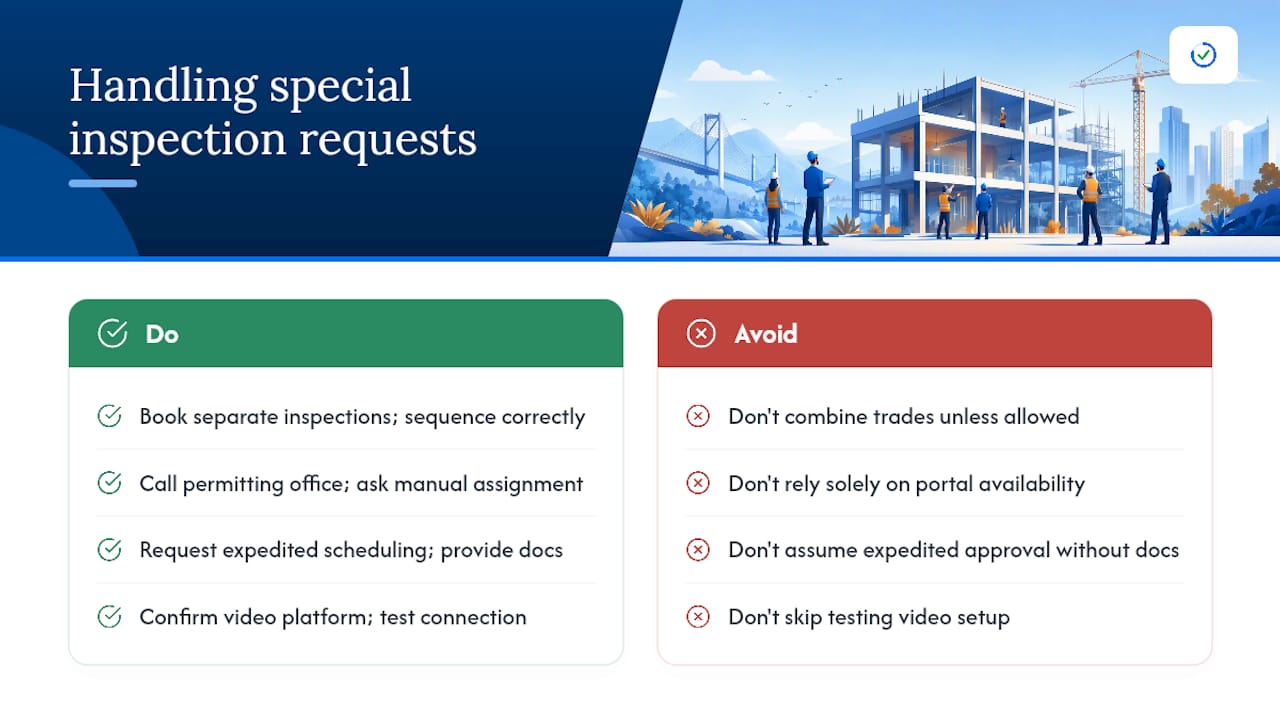
Multi-trade inspections: Some jurisdictions allow combined inspection codes; most don’t. The safer approach is to book separate inspections for each trade and sequence them correctly. For a complex project like an elevator inspection permit workflow, separate bookings with verified sequencing prevent cascading failures.
Dates outside the booking window: When the portal’s automated calendar runs out of available dates, call the permitting office directly. Ask for a manual assignment and follow up by email so you have a written record of the request.
Expedited inspections: Some jurisdictions offer priority scheduling for an additional fee, typically for projects with documented hardship or time-sensitive occupancy needs. Call the permitting office, explain the situation, and ask what documentation they require.
Remote or virtual inspections: A growing number of municipalities allow video-based inspections for specific work types. If your jurisdiction offers this, confirm the video platform they use, test your connection before the appointment, and have all required materials visible on camera.
Pro Tip: For any out-of-window or expedited request, send a follow-up email to the permitting office after your call. Subject line: permit number, inspection type, and requested date. That email becomes your documentation if the request gets lost.
Copy-paste IVR commands and SMS templates for scheduling
Typical IVR sequence:
- Call the permitting office IVR line
- Press or say the option for “Schedule an Inspection”
- Enter permit number when prompted
- Enter inspection type code
- Enter or confirm contact phone number
- Listen for confirmation number and write it down
SMS templates (format varies by jurisdiction; verify with your local permitting office):
- Schedule:
SCHEDULE [permit number] [inspection code] [YYYY-MM-DD] - Cancel:
CANCEL [permit number] [inspection code] - Reschedule:
RESCH [permit number] [inspection code] [new date] - Results:
RESULTS [permit number]
Portal message template for special requests:
Subject: Expedited Inspection Request — Permit #[number] Permit: [number] | Address: [site address] | Inspection type: [code and name] Requested date: [date] | Reason: [brief explanation] Contact: [name] | Phone: [number]
Some portals require you to select “All Day” rather than a specific time slot. If no time options appear, that’s normal behavior for Accela-based systems.
What to do when something goes wrong with scheduling
Step-by-step escalation:
- Check the portal for a confirmation number under “Pending Inspections”
- Call the IVR line and use the “Results” or “Status” option to verify the booking
- Call the permitting office during business hours with your permit number and confirmation number
- If still unresolved, email the permitting office with screenshots, your confirmation number, and timestamps
- If the issue involves a system error or inspector no-show, ask to speak with a supervisor and request a priority rebook
What to document: confirmation numbers, timestamps, screenshots of portal errors, and the name of any staff member you speak with.
Pro Tip: Call permitting offices early, ideally right when they open. Hold times are shortest in the first 30 minutes of business hours, and the staff handling escalations are typically available before the daily inspection rush begins.
How Accela Citizen Access works: a step-by-step example
The Accela Citizen Access user guide documents a consistent flow used across dozens of U.S. municipalities:
- Log in or search for your permit record by permit number or address
- Open the record and click “Request an Inspection”
- Select the inspection type from the list
- Choose an available date from the calendar (select “All Day” when no time options appear)
- Confirm contact details
- Click “Finish” to submit
The ACA system does not display a specific inspector arrival time. The inspector calls the morning of the inspection to provide an estimated arrival window. Plan to have someone on-site from the start of the business day.
To reschedule or cancel within ACA, return to the permit record, find the inspection under “Pending Inspections,” and use the Actions menu. Past inspections and their results appear under “Inspection History” on the same record.
Pro Tip: If you don’t have the permit number on hand, search by the site address in ACA. Most Accela-based portals support address lookup and will surface the active permit record.
The Oracle/Accela scheduling engine determines inspector availability using qualifications, district assignments, work schedules, and inspection calendars. If a time slot shows as unavailable or the “Select a Time” option is grayed out, it usually means the system lacks a complete inspector assignment for that date, not that the jurisdiction is fully booked.
What working with contractors taught us about scheduling friction
The friction in building permit inspections rarely comes from the scheduling systems themselves. It comes from what happens before the scheduling step: a wrong inspection code, a predecessor inspection that was never passed, or a permit package that was never fully ready to begin with.
Working with contractors and homeowners navigating Miami-Dade’s permitting process, the pattern is consistent. Projects that hit re-inspection cycles almost always had an upstream readiness problem, not a scheduling problem. The inspection was booked correctly. The work wasn’t ready, or the documentation was missing, or the wrong trade showed up because the wrong code was entered.
A permit readiness check before submission catches most of those issues before they become re-inspection fees.
Pro Tip: Before you schedule any final inspection, run through the permit’s full required inspection sequence in the portal. Confirm every predecessor shows “Passed.” One open predecessor inspection will kill a final inspection every time.
Fewer re-inspections start before you ever schedule
The scheduling step is the last mile. What determines whether that inspection passes is everything that happened before it: the permit package, the plans, the sequencing of predecessor inspections, and the on-site documentation.
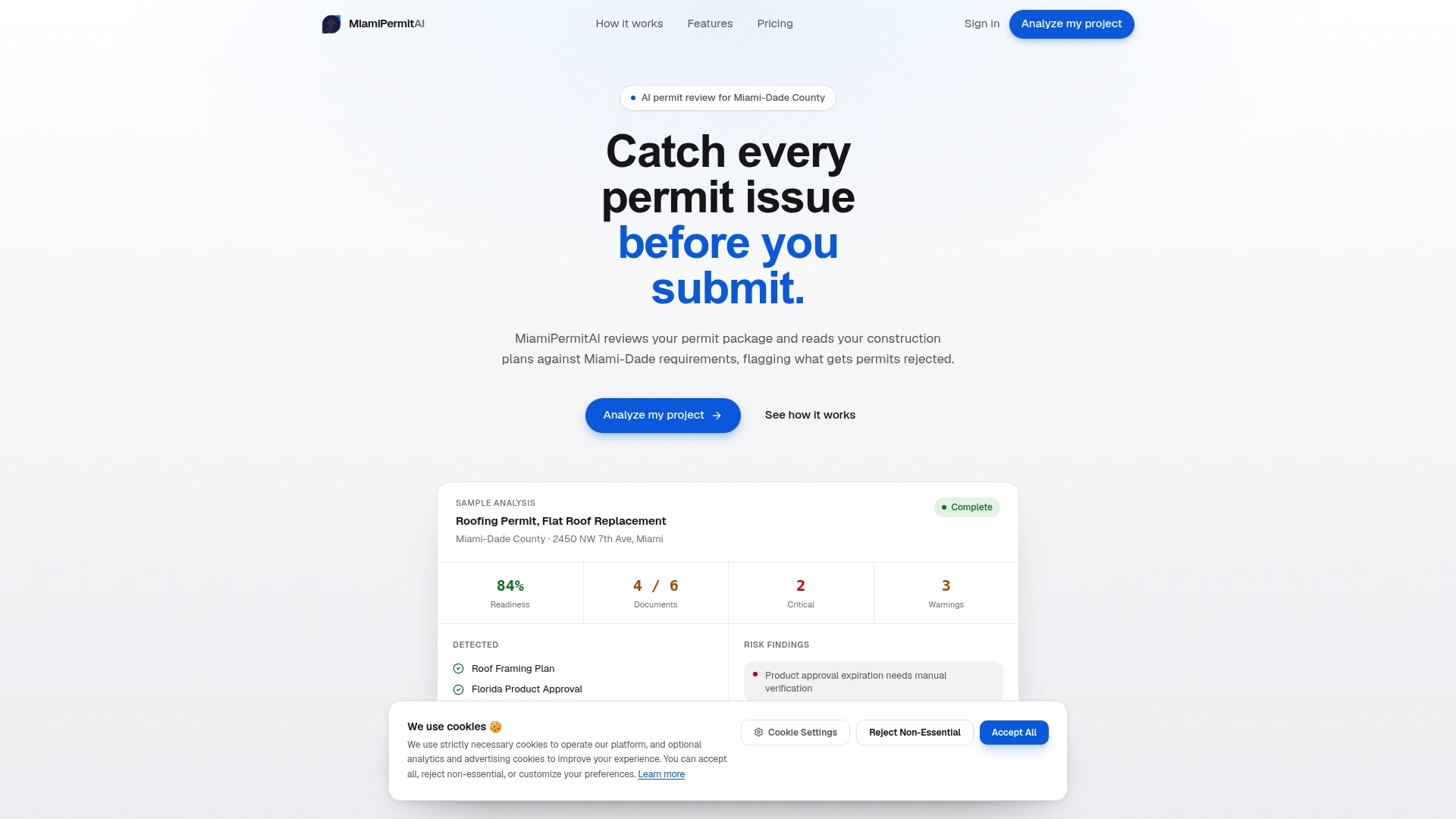
Miamipermitai reviews your Miami-Dade building permit package against actual county requirements before you submit, flagging the missing documents, plan inconsistencies, and sequencing issues that most often cause failed inspections and re-scheduling delays. You get a readiness score, a specific fix list, and plain-language guidance on what to correct. After submission, Miamipermitai tracks your permit through approval using public Miami-Dade records and sends status updates by email.
Municipal scheduling rules still apply regardless of any readiness tool. Miamipermitai reduces the likelihood of upstream errors that lead to failed inspections; it does not replace the scheduling process or guarantee approval. Check your permit package before you submit and go into your inspection with confidence.
Sources
- Portland Bureau of Development Services — Schedule an inspection
- Accela Citizen Access (ACA) user guide — Schedule an Inspection (Santa Barbara PDF)
- State of Oregon — Using Easy Inspection Scheduling (ePermitting)
- King County — Inspection scheduling instructions (PDF)
- Oracle Cloud documentation — Setting up inspection scheduling
Recommended
Is your permit package ready?
Run an AI readiness check against Miami-Dade requirements before you submit.
Try your first analysis freeThis article is general guidance and not legal, engineering, or official county advice. Always verify requirements with Miami-Dade County before submitting a permit.